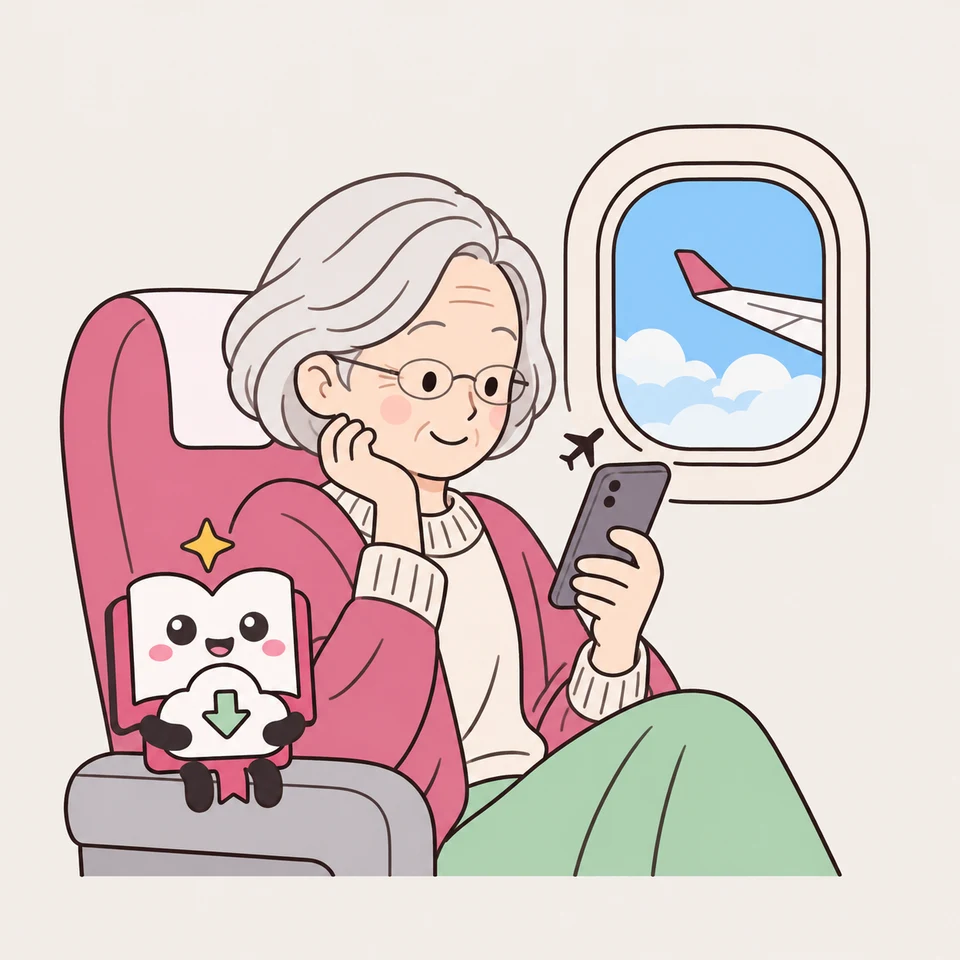
Great for people and situations like these
On the go, or in spare moments
Read even on a plane with no signal, or during a short wait. Add a bookmark and you can pick up right where you left off. Selected stories can be read as comics, too.
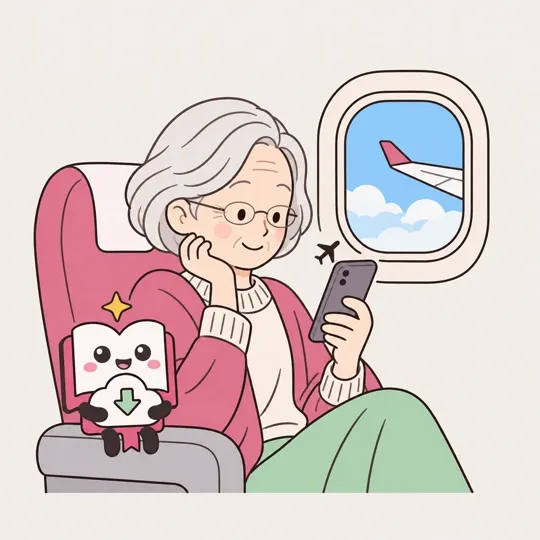
For flights and travel
If you save the chapters you want to read to your “Library”, they're stored on that device, so you can read them even on a plane or subway without a connection.
For people and situations like these
- ✈️Before a long flight
Before you leave, you can save the chapters you want to read to your library in one go from the contents.
- 🚇On a subway with a weak signal
You don't need to worry about loading stopping partway.
- 🏕️While traveling or in the mountains
You can read without worrying about data usage.
How to use
1On the chapter page, tap “⤓ Save to library”
It's above the text. Once saved, it changes to “✓ In your library”.
2To save several at once, use “⤓ Library” in the contents on the story's page
Tap “Contents” on the story's page to jump to the contents. Each chapter has its own “⤓ Library”, so you can save just the chapters you want to read (to avoid using too much of your device's storage, there's no button that saves all chapters at once). For stories with 13 or more chapters, the middle of the contents is folded, so tap “Show all … chapters” to open it.
3Where there's no connection, open “Library” from “My shelf”
From “My shelf” in the header (the bottom tab on a phone), go to “Library”, where you can open the chapters you saved. Without a connection, “You're offline. Only chapters in your library can be opened.” appears.

If something doesn't work
- I see a message saying it couldn't be saved
Check your connection and your device's free storage. The Library page shows how much storage you're using.
- The illustration video doesn't play
Illustration videos aren't saved to the library (still images are).
- What's the difference from Favorites?
Favorites only keep a mark on the story and don't save the text. For chapters you want to read where there's no connection, save them to your library.
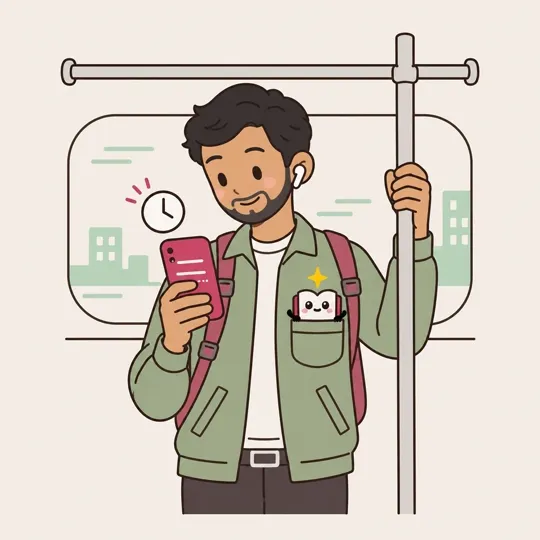
Add a bookmark and pick up right where you left off
On a chapter page, tap “🔖 Bookmark here” to save your reading position. Next time, you can return to that spot from the story's page or from “Bookmarks” in “My shelf”.
For people and situations like these
- 🚃Stopping as you get off the train
Bookmark the spot where you stopped, and you can read on from there on your next trip.
- 📚Reading several stories at once
“Bookmarks” in “My shelf” lists which story you're reading and roughly where you are.
- 🌙Continue last night's reading on your morning commute
On the same device, you can continue right from where you bookmarked.
How to use
1On the chapter page, tap “🔖 Bookmark here”
It's at the edge of the screen. When you tap it, something like “🔖 Bookmarked (42%)” appears, showing roughly where you are in the chapter.
2Continue with “🔖 Resume from bookmark” on the story's page
For stories you've bookmarked, the biggest button on the story's page becomes “🔖 Resume from bookmark” (with “Start reading from Chapter 1” below it). When you reopen the chapter, a message such as “You have a bookmark at 42% of this chapter” appears, and “Go to bookmark” takes you back there.
3See the list in “Bookmarks” in “My shelf”
From “My shelf” in the header (the bottom tab on a phone), go to “Bookmarks”. It lists the story, chapter, percentage, and date of each bookmark, and “Continue reading” opens it. When you no longer need one, tap “Remove”.
If something doesn't work
- My bookmark disappeared
Bookmarks are kept in that browser on that device. They don't appear on other devices or in a browser whose browsing data has been cleared.
Short stories for spare moments
If you make each chapter short (about 2,000 characters), you can read one chapter at a time during your commute or while waiting.
For people and situations like these
- 🚃On the train to work or school
You can read one chapter in just a few stops.
- ⏳While waiting
It's just the right length for waiting at a hospital or a shop.
- 📱Vertical text on your phone
Chapters whose text is in Japanese or Traditional Chinese can also be read vertically.
How to use
1When creating, set the length of 1 chapter to “Short”
In “1. Audience and Length” of the creation form, you can choose “Short (about 2,000 characters, 5 minutes)”. In “Simple”, it appears when you open “Using recommendations · View / change” in that section.
2Choose vertical or horizontal text
For chapters whose text is in Japanese or Traditional Chinese, “Read vertically” above the text switches to vertical. The direction you chose is remembered next time.
3If you stop partway, add a bookmark
“🔖 Bookmark here” at the edge of the screen saves your reading position. When you finish, you can go straight to the next chapter from the end of the chapter.
Selected stories, as comics too
Stories selected from the novels on the site can be read as comics on the comics shelf, “Original Novel Comics”. Chapter 1 is free to read, with no sign-up. On a phone or a computer, you can pick the layout that's easiest to read.
For people and situations like these
- 🚃A quick chapter on the train
With “Phone (scroll)”, just scroll from top to bottom.
- 📖Turn the pages like a book
With “Book (two pages)”, pages are laid out like a printed book, and you turn them sideways.
- 🌏Practice a language with comics
You can choose the speech-bubble language separately from the site language—for example, read with English speech bubbles.
How to use
1Go to the comics shelf from “Comics” in the header
On a phone, it's the middle tab at the bottom. There's also a link at the very bottom of each page. For stories that have a comic, you can also open it from “Read the comic” on the novel's story page or at the end of a chapter. On the shelf, tap a cover to open Chapter 1.
2Choose “Book (two pages)” or “Phone (scroll)”
“Book (two pages)” is laid out like a printed book: page 1 on the right, then two-page spreads (one page at a time on a narrow screen). “Phone (scroll)” reads from top to bottom. Tap a picture to see it larger.
3In “Book (two pages)”, turn the pages sideways
Swipe, use the arrow keys, or tap the left or right edge to turn the page. Drag the slider at the bottom to jump to any page.
4Choose the speech-bubble language with “🌐”
Separately from the flag at the top right (the site language), you can choose the comic's language (the language in the speech bubbles). Your choice is remembered for next time. Languages not in the list are made once enough people cheer with “I want this language” on the comic's page.
5When you finish, cheer for what comes next
At the end of Chapter 1, you can tap “Cheer for Chapter 2”. No sign-up is needed, and each person can cheer once. When the cheers reach the goal, the next chapter goes into production. You can also read ahead in the novel with “Keep reading in the novel”.
If something doesn't work
- The story I want isn't a comic yet
On the novel's story page, use “I want this as a comic” under “Create from this story” to request it. Stories to turn into comics are chosen based on things like the number of requests and popularity.
- The pages won't turn
With “Phone (scroll)”, you scroll from top to bottom. Turning pages sideways is for “Book (two pages)”.
- There are no speech bubbles in the language I want
You can't choose a language that doesn't have an edition yet for that comic. Please choose from the languages in the “🌐” list.